Optimize Your Samsung Camera Settings for High-Quality Photos
Enhance Camera Resolution
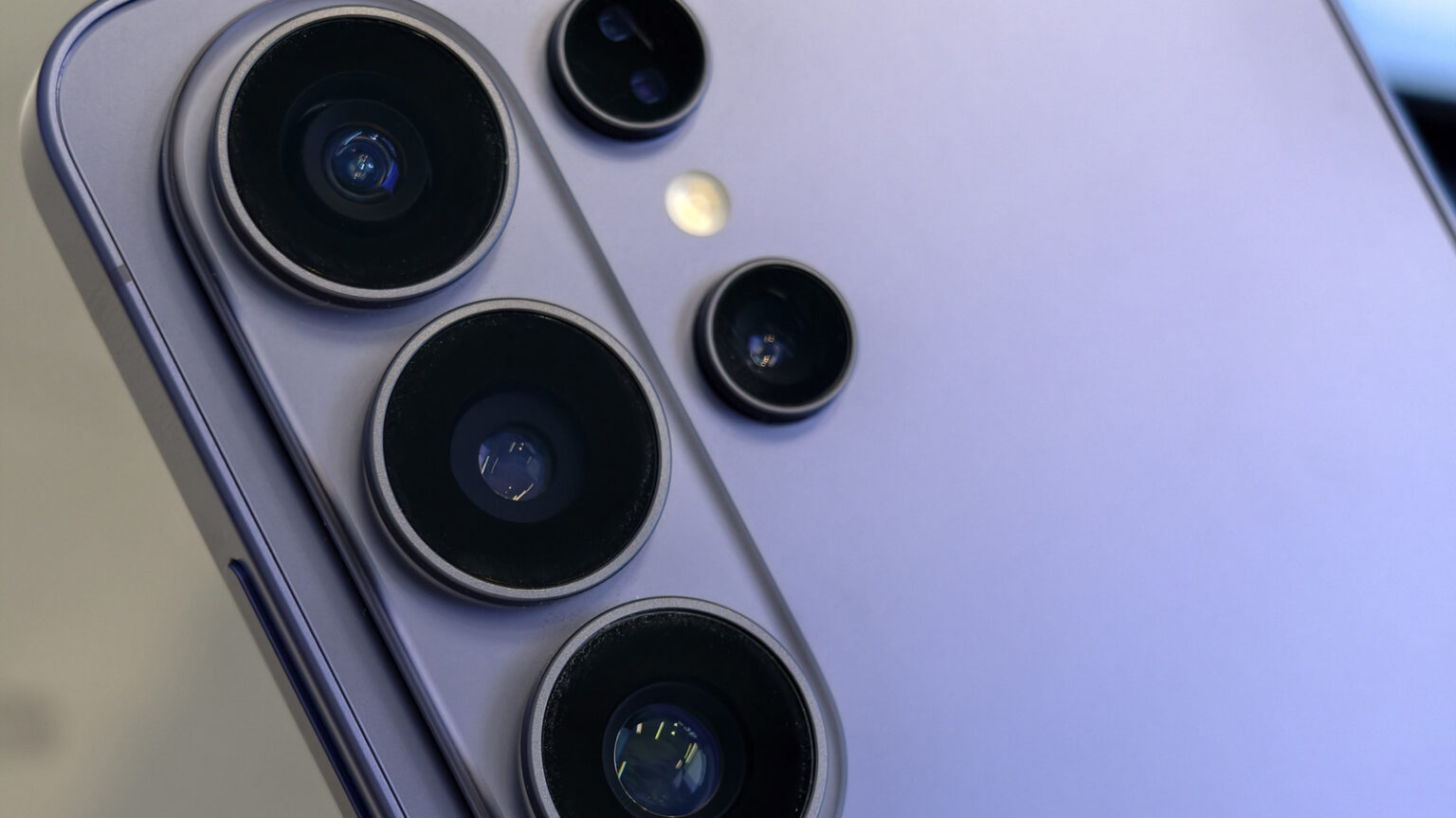
Samsung’s phone cameras offer features that can significantly improve photo quality, yet many users may not be aware of the optimal settings available. For devices like the Samsung Galaxy Z Fold 7 and the Galaxy S26 Ultra, which boast a 200-megapixel camera, the default setting is often set to a much lower resolution. To capture higher-quality images, users can easily switch to the maximum resolution settings.
To adjust the resolution, open your camera app and locate the “12M” (12 megapixels) icon in the top right corner. Tapping on this icon will reveal additional options, including 50M and 200M for higher resolution images. It is important to note that while higher resolutions result in better quality photos, they also take up more storage space. Samsung devices do not automatically save this setting, so users must reselect it each time they access the camera. To make this change permanent, navigate to the settings menu, select “High picture resolutions,” and toggle it on.
Explore Pro Mode for Advanced Control
Pro mode is another essential feature that enhances the photography experience on Samsung devices, offering users DSLR-like controls. In this mode, photographers can adjust camera settings such as ISO, shutter speeds, aperture, and white balance for more precise image customization.
To access Pro mode, ensure the camera app is open, and tap the “More” option at the bottom right of the screen. This will provide a range of modes, including Panorama and Slow Motion, where users can select the “Pro” mode. Once activated, the interface will change, allowing for adjustments to settings that can help achieve the desired shot. The Pro mode is suitable for both seasoned photographers and beginners looking to experiment with their photography skills.
Adjust Exposure for Optimal Lighting
The default exposure settings on Samsung cameras tend to overexpose images in bright environments, leading to washed-out photos. This can be remedied by adjusting the exposure settings either by decreasing it in bright conditions or increasing it in darker settings to enhance the quality of the images.
To modify the exposure, tap the menu button located in the bottom right corner and slide over to the plus or minus icon. A negative exposure setting will reduce the light, while a positive setting will absorb more light. For those using the Galaxy S26 as a webcam, these adjustments can also improve visual quality during video calls and conferences, making it a viable alternative to conventional webcams.
Utilize Scene Detection for Enhanced Image Quality
The Scene Detection feature in Samsung Galaxy devices optimizes image quality by automatically adjusting settings based on the detected environment. To activate this feature, open the camera app, tap the settings icon, and enable Scene optimizer.
Within this menu, users can select how the camera prioritizes quality and speed. Options include Maximum for visual quality, Medium for a balance between speed and quality, and Minimum for prioritizing rapid capture with minimal post-processing. This feature is particularly useful for capturing fast-moving subjects. Additionally, for low-light video recording, the Galaxy S26 provides a manual night mode that allows users to customize their settings for better performance in dim environments.