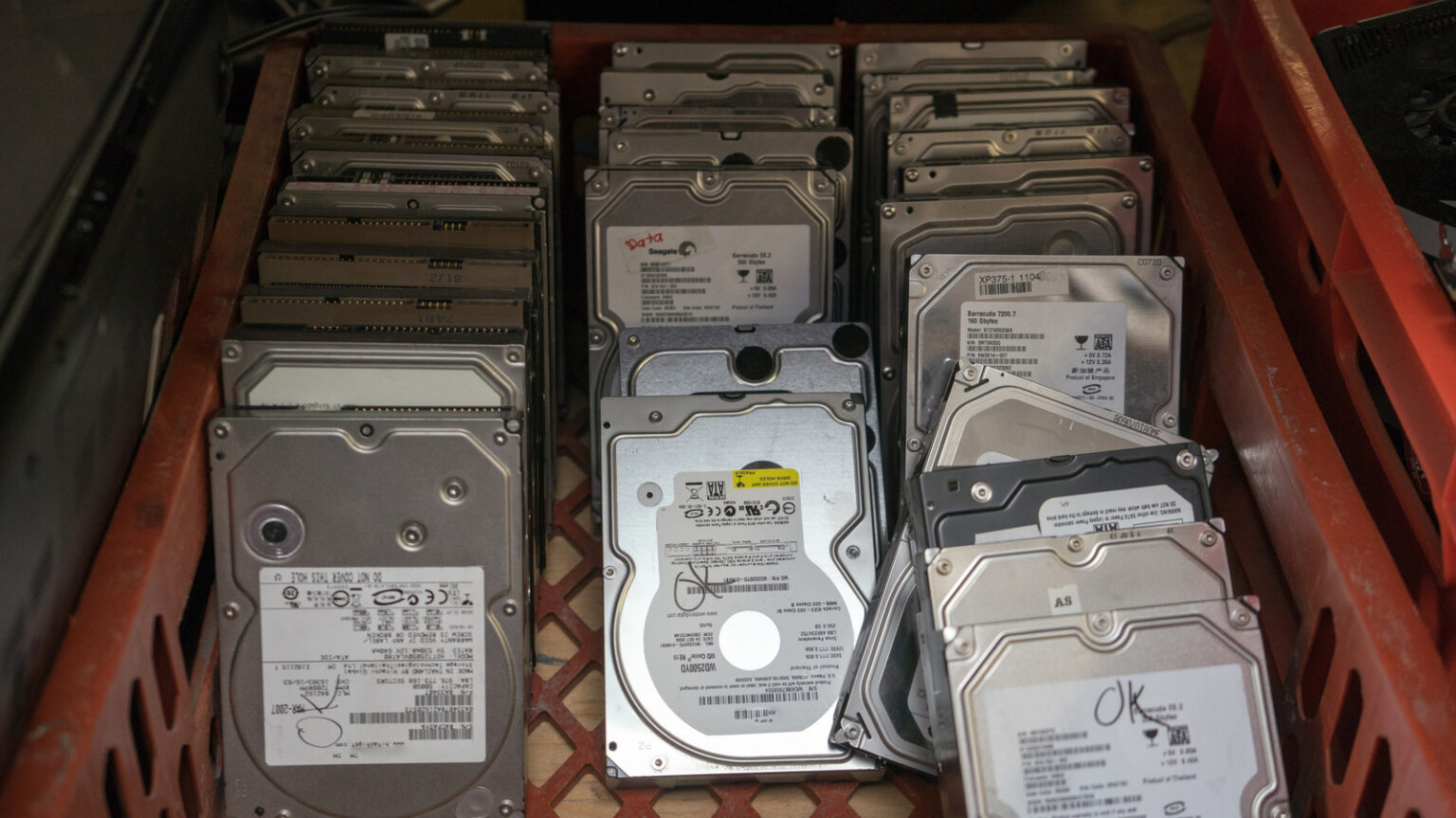
Hard disk drives (HDDs) are often viewed as the most economical solution for expanding data storage, despite the advantages of solid-state drives (SSDs) in terms of speed and reliability. For users seeking high-capacity storage, particularly enterprise-grade HDDs, costs can be significant. Typically, a new consumer-grade 6TB HDD from reputable manufacturers or resellers may cost around $150 or more. However, purchasing a used hard drive could offer a less expensive alternative. The primary question is whether this is a wise decision.
When considering used hard drives, it’s important to recognize the increased risk of data loss. Research indicates that the likelihood of failure escalates significantly after three years of use. While proper maintenance can potentially extend a drive’s lifespan to five years, replacing them after this period is generally advisable. If you intend to use a used HDD as your main system drive or for sole backup purposes, it may not be the best choice. Even a used drive with a solid warranty does not guarantee protection against data loss.
Conversely, employing a used HDD as secondary storage, alongside critical data backed up on a new drive or in the cloud, can be a viable option. Although buying a used hard drive carries inherent risks due to reduced longevity, certain precautions can help mitigate these risks. For example, sourcing the drive from a reputable vendor and confirming that it passes the S.M.A.R.T. (Self-Monitoring, Analysis, and Reporting Technology) health check can enhance decision-making.
Essential Steps When Buying a Used Hard Drive
Before purchasing a used hard drive, it is crucial to ensure it has been recertified or refurbished. These terms generally indicate that the drive has been restored to full working condition and has undergone comprehensive testing prior to being offered for resale at a lower price. The distinction lies in the entity responsible for the refurbishment; a recertified drive is typically restored by the original equipment manufacturer (OEM), while a refurbished drive may have been serviced by third parties.
For those planning to store important data on a used hard drive, it is advisable to choose a recertified product. Drives labeled as factory recertified or manufacturer recertified are restored to standards comparable to new drives, providing greater assurance of performance and reliability. Additionally, it is essential to purchase from reputable sources, such as the website of established OEMs like Western Digital (WD) or reliable third-party sellers like ServerPartsDeal, which also offer high-capacity, enterprise-grade recertified HDDs.
A warranty is another important consideration when acquiring a used hard drive. Typically, warranties may range from six months to one year; nonetheless, any form of warranty is preferable. Given that used drives are associated with a higher risk of failure, having a warranty offers a degree of protection for consumers and ensures recourse for potential damage that could occur during transit.
Importance of S.M.A.R.T Data
In addition to confirming that a drive is recertified, prospective buyers should inquire about the drive’s S.M.A.R.T. data, which is available in most modern hard drives. This data provides insights into the remaining lifespan of the drive. Buyers can request a screenshot showing its health status, which is typically categorized as Good (blue), Caution (yellow), or Bad (red) based on assessments from health-checking tools like CrystalDiskInfo.
Consumers can also utilize these tools to independently verify the health of the drive after purchase; discrepancies between expected and actual performance may warrant filing a dispute. S.M.A.R.T. utilities are equally applicable for SSDs, even in the absence of visible failure symptoms. Furthermore, monitoring Power On Hours can give an indication of the drive’s usage history.
Operating systems provide built-in options for checking S.M.A.R.T. status. On Windows, users can access this by running a specific command in Command Prompt, while Mac users can check the S.M.A.R.T. status through the System Report feature under “About This Mac.” If the status indicates ‘OK’ or ‘Verified,’ the drive is functioning properly; however, statuses indicating ‘Failing’ or ‘Fail’ signal potential risks associated with the drive’s performance.